
Student iCON
Access Google apps for learning and teamwork through Student iCON. Log in at the Google Workspace dashboard using your Student MIMS credentials.
Student iCON
Student iCON is a suite of Google apps that helps to better support student’s learning and collaboration with others.
Student iCON can be accessed from https://workspace.google.com/dashboard (opens in new tab). Students may refer to Page 25 of their Student Handbook for details on their MIMS Username and Password.
Benefits of Student iCON
Facilitate collaboration and self-directed learning
Enhance Teaching and Learning
Support the Development of Digital Literacies
These useful applications will be provided progressively and will follow you throughout your learning journey from Primary School to Junior Colleges.
Common GSuite Services
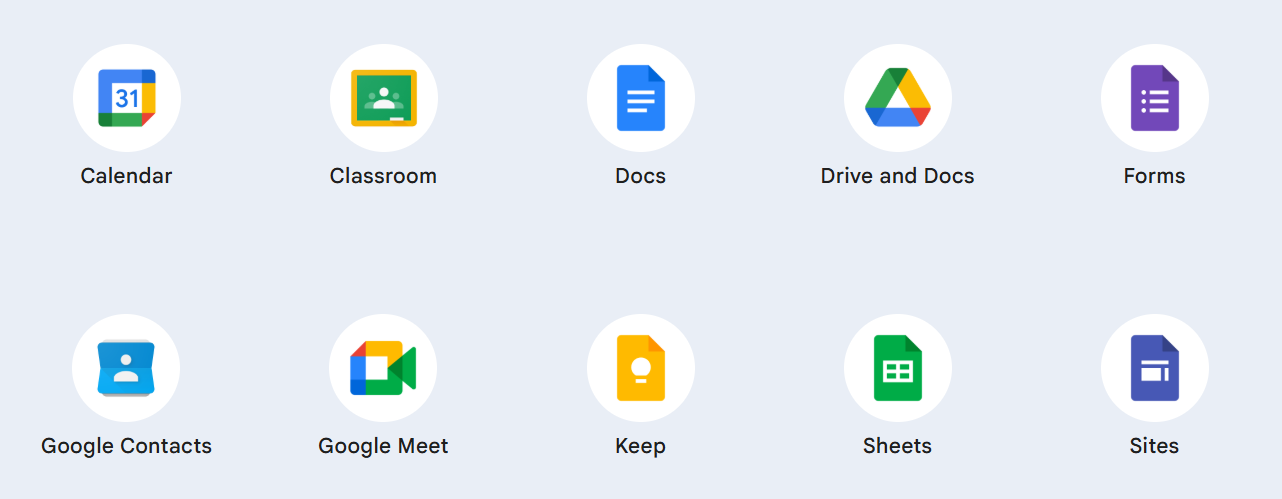
Note: App such as Gmail is not available for Primary 1 to 3 students.
Account Locked? Here's How to Unlock It
Your account may be locked if there have been too many failed login attempts due to incorrect password entries.
Don't worry — you can unlock it yourself by following these steps:
Step 1: Go to the Login Page and Click 'Forgot Password?'
On the login page, click on the 'Forgot Password?' link.
Note: This option will only work if you have previously set up your MIMS Challenge Questions. If you have not done so, please proceed to Step 4 below.
Step 2: Answer Your Challenge Questions
You will be prompted to answer your MIMS Challenge Questions. Answer them correctly to proceed.
Step 3: Choose Your Next Action
Once your Challenge Questions are verified, you will see two options:
Option A — Unlock your account (if you remember your password)
Click 'Unlock Password'. Your account will be unlocked and you can log in using your existing password.
Option B — Reset your password (if you have forgotten your password)
Click 'Change Password' to set a new password. Once done, use your new password to log in.
Step 4: If You Have Not Set Up Challenge Questions
If you have not previously set up your MIMS Challenge Questions, you will not be able to use the self-service option. Please approach your school's MIMS Student Administrator (SA) to reset your password.
Password Requirements (for reference when setting a new password)
Your new password must meet the following requirements:
8 to 24 characters long
At least 1 uppercase letter (e.g. A, B, C)
At least 1 lowercase letter (e.g. a, b, c)
At least 1 number (e.g. 1, 2, 3)
Must not be the same as your last 3 passwords
Must not contain your name or username
Student iCON Support
Request for reset password through our School-based Helpdesk at https://go.gov.sg/concordsls (opens in new tab)
Students may approach their form or subject teachers for assistance if they encounter any issues such as password related matters.